

Gloop
a little bunny
Sits on your menu bar with its feet dangling, and hops onto each reminder to do it with you: sips water, jumps when you stand, and munches a carrot on a break (no coffee for bunnies).
Tiny creatures glued to your Mac, looking out for you while you work. They help you rest your eyes, drink water and get up to move.
No account · No tracking · No subscription

$2.99 once · no subscription · macOS 14 or later
Real recordings from the app. Pick a moment to see your Gluey in action:
The Glueys
a little bunny
Sits on your menu bar with its feet dangling, and hops onto each reminder to do it with you: sips water, jumps when you stand, and munches a carrot on a break (no coffee for bunnies).

a koi in a drop of water
Swims in a little water bubble in your menu bar. For each reminder the bubble drops down into a drop: it blows bubbles for water, jumps when it's time to stand, and soaks in coffee on a break.

a bearded lumberjack, new in 1.1
Dry, a little judgy, kind underneath. Sits on your menu bar with his boots dangling and drums his fingers when a reminder is due. He drinks water with you, stretches, squints into the distance for your eye rest, and on a break he has a coffee, whittles, then gets up and chops a log.
“I was amused when Gloop was napping on my screen. Fun animations are welcome!”
“Your website and marketing all looks great.”
Moving it
Drag your Gluey anywhere on the screen. Let go and it glides to its new home and settles in.
How it works
Straight from the app, on its default rhythm. You open the lid at nine and keep working.
Lid open. Your Gluey rests in your menu bar, and that's all for a while.
Rest your eyes. Three slow blinks together, then you both look far away for 20 seconds.
Stand up. Happy jumps.
Rest your eyes again.
A real break. The koi soaks in a drop of coffee; the bunny has a carrot instead; Cedar has a coffee, whittles a bit of wood, then gets up and chops a log.
Stand up, and drink some water on the way.
Quiet hours. Asleep until morning.
If you're away from your Mac, it doesn't remind you of anything. Being away counts as the rest, and it starts counting again when you're back.
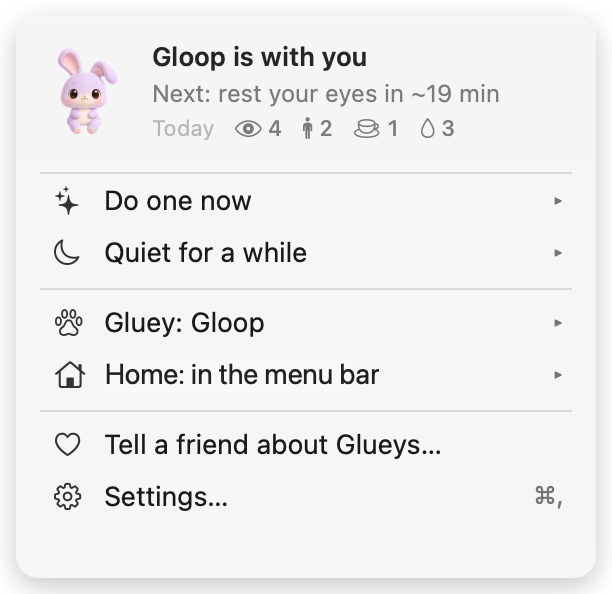
Your day
Click your Gluey in the menu bar to see what's next and how your day is going.

The rhythm
| Reminder | Default | Based on |
|---|---|---|
| Rest your eyes: 3 slow blinks, then look far away 20 s | every 20 min | the 20-20-20 rule and full blinking (American Academy of Ophthalmology) |
| Stand up | every 30 min sitting | breaking up sitting every 30 min (Columbia University, 2023) |
| A real break, 5–10 min | every hour | UK Health and Safety Executive screen-work guidance |
| Water | about hourly | no official interval; offered when you stand up |
| Deep breath | once each afternoon | slow breathing, about 6 a minute, eases stress (research review, 2018) |
Gentle spaces them out; Active is a little more frequent. Every timing can be changed in Settings.
Good manners
Hides while a call is using your microphone. It never listens.
Steps aside for films and slides.
No pop-ups, no badges. Silent, unless you turn on its soft little sound.
25, 50 or 90 minutes with no reminders, and a cheer at the end.
It lives in the menu bar, so it fits any screen: right by the notch on a MacBook, among your icons anywhere else.
Skip a reminder often and it comes less often.
Privacy
It only knows whether you're at your Mac or away. Nothing else, and it never records when you were away.
The short version: Glueys collects nothing about you. It has no account, no analytics, no ads, and it never connects to the internet. The little it needs to work stays on your Mac, and you can delete it by deleting the app.
This policy covers the Glueys app for Mac and this website, glueys.com. Both are made by the Glueys team ("we", "us"). You can reach us at support@glueys.com.
To know when to remind you, and when to stay quiet, Glueys looks at a few things on your Mac. It only checks them; it never records, stores or sends them anywhere.
| What it checks | Why | Kept? |
|---|---|---|
| Seconds since you last used the mouse or keyboard | To tell if you're at your Mac or away, so it waits for a natural pause and knows when you took a break. It never sees which key you pressed or what you typed. | No |
| Where the mouse pointer is | So the creature can look at your cursor, and so clicks pass through everywhere else. | No |
| Whether a microphone is in use (yes or no) | Every couple of seconds. To hide your Gluey during calls (on by default; you can turn that off in Settings), and so that sitting quietly in a meeting isn't counted as stepping away. It can't hear anything; it only knows that some app is using a microphone. It never checks the camera. | No |
| Whether a window covers the whole screen | To hide during films, slides and full-screen apps. It doesn't read window titles or contents. | No |
| Your settings and reminder rhythm | So your choices are still there tomorrow. | On your Mac only |
| How many reminders you did each day (counts only, the last 30 days) | For today's numbers, the morning look back at yesterday, and what you share if you choose to. No times or places, only counts. | On your Mac only |
Glueys does not ask for screen recording, accessibility, camera, microphone, location or contacts permission. It keeps itself out of screenshots and screen sharing.
Glueys is sold through the Mac App Store. Apple handles the payment and your Apple Account; we don't receive your name, email or card details. Apple's own privacy policy covers that part. Apple may give developers anonymous, combined statistics such as the number of downloads per country; if you have chosen to share app analytics with developers in your Mac's settings, Apple may also share anonymous crash reports. These never identify you to us.
glueys.com is a plain website with no cookies, no analytics and no tracking scripts. It doesn't load anything from other sites. It is hosted by Cloudflare, which, like any web host, processes your IP address and basic request details to deliver the pages and protect the site from attacks. See Cloudflare's privacy policy.
If you write to us, we use your email address and what you send only to reply to you, and we won't add you to any list. Ask us to delete the conversation and we will.
Glueys collects no personal information from anyone, including children.
Because we don't hold any personal data about you from the app, there's nothing to access, correct or delete on our side. Your settings live on your Mac; deleting the app removes them. If you have a question about your data or this policy, write to support@glueys.com.
If this policy ever changes, the new version will be on this page with a new date. If a change ever meant the app would collect anything, we'd say so clearly in the app's update notes first, and we'd rather not make that change at all.
Compared
| A break timer | Glueys | |
|---|---|---|
| How it asks | A pop-up or a dimmed screen | A little Gluey does it with you |
| While you're on a call | Often still pops up | Hides |
| When you step away | Keeps counting | Counts it as the break |
| What it knows | Varies | Only whether you're here |
| Your progress | Rarely shown | Today's eye rests, stand-ups, breaks |
Limits
Pricing
Mac App Store
$2.99 once · macOS 14 Sonoma or later
Made by a tiny independent team. Works on any Mac with macOS 14 or later.
FAQ
Because they're glued to your Mac. :P Gloop, Ripple and Cedar stay right in your menu bar all day, so someone is always looking out for you.
Everything about the rhythm, in Settings:
No, but Glueys is $2.99 once, with no subscription. If it isn't for you, you can ask Apple for a refund at reportaproblem.apple.com.
Yes. If you've been working and then step away for a while (5 minutes by default, you can change it in Settings), that counts as a real break and a stand-up, and your Gluey says welcome back. Longer than 3 hours, or overnight, isn't a break, so it isn't counted. Glueys never reminds you while you're away.
Your Mac tells apps how many seconds since you last touched the keyboard or mouse, and nothing else. Glueys uses that one number to know when you're on a break. It never records where you were or what you did, and nothing leaves your Mac.
Nothing bad. The button fades after a few minutes, and stepping away from your Mac still counts. A reminder you skip just isn't counted, and if you skip one kind often, it comes less often.
No. It has its own spot in the menu bar, so your Mac keeps app menus and other icons clear of it. If your menu bar is completely full, it peeks out from under the notch instead. Clicks pass straight through everywhere except your Gluey itself, and nothing hangs over your pages unless a reminder is playing.
Yes. It lives in the menu bar like your other menu bar icons, so it works on any screen. You can also drag it anywhere.
No. It keeps itself out of screenshots and screen sharing, unless you turn that on in Settings.
No. Resting, it uses well under 1% of the processor, and nothing at all when your screen is off. It never keeps your Mac awake.
No. The rhythm follows public screen-health guidance, but Glueys is a friendly nudge, not a health device. If something hurts, see a doctor.
Click your Gluey in the menu bar (or right-click it wherever it lives) and choose Settings….
Right-click your Gluey and choose Gluey, or pick one in Settings. Your reminders and settings stay the same.
Cedar is the third Gluey, a bearded lumberjack, added in version 1.1. He is dry and a little judgy but kind underneath. Pick him in Settings or from the menu; your reminders and settings stay the same.
No. While your microphone is in use, quiet time at the keyboard is treated as you being here, not as stepping away, so a long meeting doesn't reset your timers or count as a break. Glueys only sees that the microphone is on, never what is said. Your Gluey also hides until the call ends, unless you turned that off in Settings.
In the menu bar, hold ⌘ and drag it along the bar, like any menu bar icon. Or drag it anywhere on the screen: drop it back in the menu bar to send it home, or onto the Dock's row to live at its very end. You can also click it and choose Home → In the menu bar or By the Dock.
In Settings choose Gentle, or turn off the reminders you don't want and set the minutes for the rest. You can also pause it for 30 minutes, an hour or until tomorrow from its menu.
It hides on its own during full-screen apps, and during calls (that is on by default; you can turn it off in Settings). It also sleeps during quiet hours. If it's gone for another reason, quit Glueys and open it again, then write to us. To keep it after a restart, turn on "Open Glueys when I log in".
Only if you want it to. It asks you once, after your first reminder, and you can change it any time with "Open Glueys when I log in" in its Settings.
Quit it from its menu, then drag Glueys from Applications to the Trash. That also removes its settings.
Support
Something not working, or your Gluey behaving oddly? Write to support@glueys.com. A real person reads every email, and we usually reply within two working days. It helps to tell us your Mac model and macOS version.
A Gluey you'd like to see, a reminder you wish it had? Send it to support@glueys.com. Many of the small details in Glueys started as someone's email.
The short version: buy it on the Mac App Store, use it on your Macs, enjoy it. It's a friendly reminder, not medical advice. It comes as it is, and we'll do our best to fix anything that's wrong.
Glueys is made by the Glueys team ("we", "us"). Contact: support@glueys.com.
Glueys is sold through the Mac App Store. Your use of the app is governed by Apple's Licensed Application End User License Agreement together with these terms. If the two disagree, Apple's agreement wins.
You may use Glueys on any Mac you own or control that is signed in with the Apple Account you bought it with, as the App Store's rules allow. You may not copy, resell, rent, reverse-engineer or redistribute the app, its creatures or its artwork, except where the law allows it regardless of these terms.
Glueys reminds you to rest your eyes, hydrate, stretch, breathe and take breaks. These are general, everyday suggestions. Glueys is not a medical device and does not diagnose, treat or prevent any condition. If you have pain, eye strain, a health condition, or you're unsure what is right for you, talk to a doctor. Don't rely on the app for anything health-critical.
The price is shown on the App Store and is paid once. Apple processes all payments, taxes and refunds under its own terms. To ask for a refund, use reportaproblem.apple.com.
We may release updates that fix problems, add things or change how the app looks or behaves. Version 1 updates are free. We may stop updating the app one day; if we do, the version you have will keep working as long as your Mac supports it.
We've worked hard to make Glueys gentle, light on your battery and reliable, but it is provided "as is" and "as available". To the extent the law allows, we don't promise it will be free of bugs, work on every Mac, or remind you at any exact time.
To the extent the law allows, we're not liable for indirect or consequential losses arising from your use of the app or this website, and our total liability to you is limited to the amount you paid for the app. Nothing in these terms limits rights you have under consumer law that can't be limited.
You're welcome to read, link to and share glueys.com. Please don't try to break it, overload it or copy it as your own. The name Glueys, the creatures Gloop, Ripple and Cedar, and the site's words, images and videos belong to us.
These terms are between you and us, not Apple. Apple isn't responsible for the app or its content, and has no obligation to provide support for it. Apple and its subsidiaries are third-party beneficiaries of these terms and may enforce them.
These terms are governed by the laws of India, without overriding any consumer protection laws of the country where you live that give you more rights.
If these terms change, the new version will be on this page with a new date. Using the app after a change means you accept the new terms.